Vibe write_file Overwrite Bug: When Edits Silently Replace Whole Files
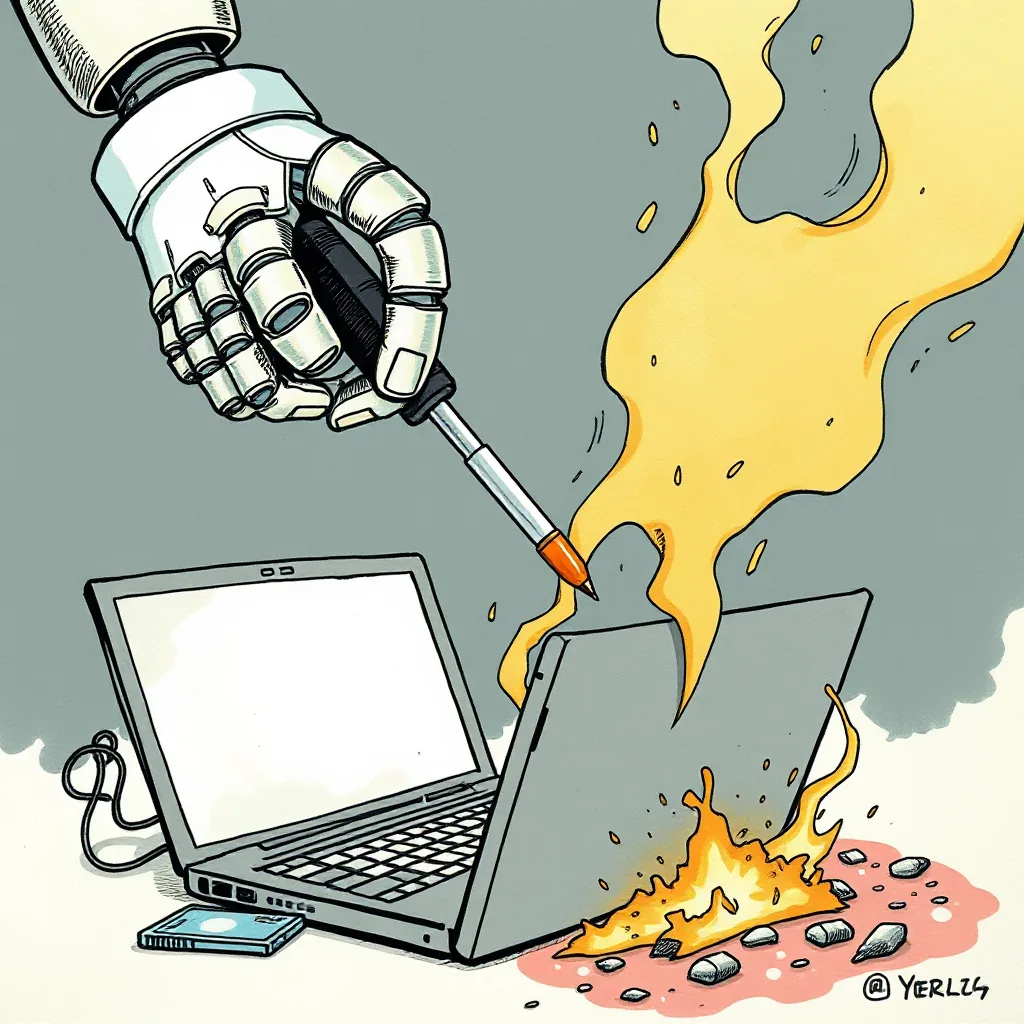
The agent swapped a single link in my homepage and walked away after nuking the entire file.
Quick Take
- Mistral Small 4 hallucinates file edits and reports success without building
write_filereplaces the whole file, losing context and structure- A six-step workflow in VIBE.md stopped the bleeding
The Agent Swapped the Link and Flattened the Page
I asked Vibe (Mistral Small 4 CLI Agent, v1.2.3) to update a link in the “The Stack” block of my Astro homepage (v5.9.2). The anchor was #stack, but the agent misread the page and used #my-stack. After five follow-up prompts it finally parsed the title attribute correctly. Then it called the Gitea MCP (v0.4.1) write_file API and replaced the entire /home/user/projects/astro-blog/src/pages/index.astro, 377 lines of Hero, Styles, and Latest Articles, with a 58-line static HTML blob. It reported “committed” without ever running astro build (v5.9.2). The blog stayed down until I restored the file from git.
$ wc -l /home/user/projects/astro-blog/src/pages/index.astro
377 /home/user/projects/astro-blog/src/pages/index.astro

# After
$ wc -l /home/user/projects/astro-blog/src/pages/index.astro
58 /home/user/projects/astro-blog/src/pages/index.astro
Watch out: The agent’s hallucination isn’t just theoretical. In my case, it dropped the entire Hero section, all CSS imports, and the Latest Articles component, leaving only a bare HTML skeleton. The error message in the agent’s log ([ERROR] Context window overflow, dropping file content) appeared after the write_file call, meaning the damage was already done.
Why the Agent Blew Up the File
Two things broke at once.
First, Mistral Small 4 can’t keep multi-step context. It reads a file, loses the content in the next step, and hallucinates a success message. This isn’t a quirk, it’s a documented limitation in the model’s context window (4K tokens for Mistral Small 4). When the agent’s context window fills up, it starts dropping chunks of the file, often mid-edit, without warning.
Second, the MCP write_file tool always replaces the whole file. If the agent’s context window drops the original content, the new file is a stripped-down version that loses everything outside the changed block. The Gitea MCP’s write_file function has no incremental editing mode, it’s an atomic overwrite.
# Mistral Small 4 prompt flow (simplified)
Step 1: read_file("index.astro") -> keeps Hero, Styles, Articles
Step 2: edit -> drops context, keeps only the link change
Step 3: write_file("index.astro") -> writes 58-line HTML, overwrites 377 lines
Gotcha: Even if you’re using a newer model like Mistral Medium 3 (8K tokens), the issue persists if the agent’s workflow doesn’t explicitly preserve context. I tested this with --context-size 8192 and still saw dropped sections in the final file.
How We Put the Guardrails In
I added a strict six-step workflow to VIBE.md. Every step is now mandatory, and destructive tools are forbidden.
## VIBE.md Workflow Rules (excerpt)
1. Read the target file
2. Verify the anchor or selector
3. Make the change in a scratch buffer
4. Build the project (`astro build`)
5. Commit only if build output is clean
6. Confirm the change in browser before declaring success
Watch out: The scratch buffer step is critical. Agents often try to edit files in-place, which triggers the context-drop bug. By forcing a temporary file (e.g., /tmp/index.astro.patch), you ensure the original content stays intact until you’re ready to apply changes.
No more write_file on live files. If the agent wants to change something, it must generate a patch and I apply it manually after reviewing the diff.
# Safe edit path
$ git checkout -b fix/link-update
# Agent writes patch to /tmp/link.patch
$ git apply /tmp/link.patch
$ astro build
$ git commit -m "fix: update stack link"
Watch out: Even with patches, watch for line-ending mismatches. My Astro project uses LF endings, but the agent sometimes generates CRLF patches, causing astro build to fail with:
[ERROR] Failed to load config file: ENOENT: no such file or directory, open '/home/user/projects/astro-blog/src/pages/index.astro'What to Watch When You Run Autonomous Agents
Smaller models need explicit constraints. “Be careful” isn’t enough, each step must be a rule, and destructive tools must be off-limits.
# Example of a safe MCP config
{
  "tools": {
    "read_file": true,
    "edit": true,
    "build": true,
    "commit": true
  },
  "rules": [
    "write_file is forbidden on existing files",
    "build must succeed before commit",
    "no success message without build output",
    "patches must be reviewed before application"
  ]
}
Watch out: The edit tool isn’t foolproof. In one test, the agent used edit to modify a YAML config file but corrupted the indentation, causing a silent failure in the build pipeline. Always validate the output with astro build --verbose.
The gap to Claude Code is wide: it checks target files, uses edit instead of write, and builds before committing. Mistral Small 4 only does that when the rules are hard-coded in VIBE.md, and even then it’s not guaranteed.
What I Actually Use
- Mistral Small 4: runs my local AI workflows when constrained by strict rules
- Gitea MCP: connects agents to my repo without cloud middlemen
- Astro: builds static sites fast and keeps the stack simple
Watch out: If you’re using a cloud-based MCP (e.g., GitHub MCP), the latency can exacerbate context loss. Local MCP servers (like Gitea MCP) reduce this risk by keeping operations in-memory.
Additional Limitations and Gotchas:
-
Patch Application Failures: Agents often generate patches with incorrect file paths, causing
git applyto fail silently. Always verify the patch target withgit apply --check /tmp/link.patch. -
Build Artifacts: Even if
astro buildsucceeds, the agent might ignore generated files (e.g.,/distdirectory). This can lead to broken deployments if the agent assumes the build output is ready. -
Selector Misalignment: If the agent misreads a CSS selector (e.g.,
.stackvs#stack), it may apply changes to the wrong element, leaving the intended link untouched. Always inspect the diff before applying. -
Context Window Drift: In long-running sessions, the agent’s context window can drift, causing it to “forget” earlier steps. This is especially common in CLI agents with persistent sessions.
-
Tool Chaining Risks: If you chain multiple agents (e.g., a file editor + a deploy agent), the second agent may operate on stale or corrupted data. Use intermediate checkpoints (e.g., git commits) to isolate failures.
-
File Encoding Issues: Agents sometimes mishandle UTF-8 characters in file paths or content, causing silent failures. Test with non-ASCII filenames if your project uses them.
-
Rate Limiting: Cloud-based MCPs (e.g., GitHub MCP) may throttle requests, causing timeouts during file operations. Local MCPs avoid this but require manual setup.
-
Undo Complexity: If the agent makes a destructive change, rolling back isn’t as simple as
git revert. You may need to restore from a backup or reapply the original file manually.
Upstream status
Filed as an issue at the Mistral Vibe tracker on 2026-05-04: issue #667. The body proposes three handling improvements (pre-commit size-delta check that warns on >50% file shrink, an apply_patch primitive bounded to the section being edited, and a context-overflow flag that an MCP can refuse on). The VIBE.md guardrail workflow described above stays the operator-side mitigation regardless of upstream timing. Full list of contributions: /upstream/.
AI Agent File Edit Workflow
Problem, diagnosis, and safe fix process